Find out where to get an item
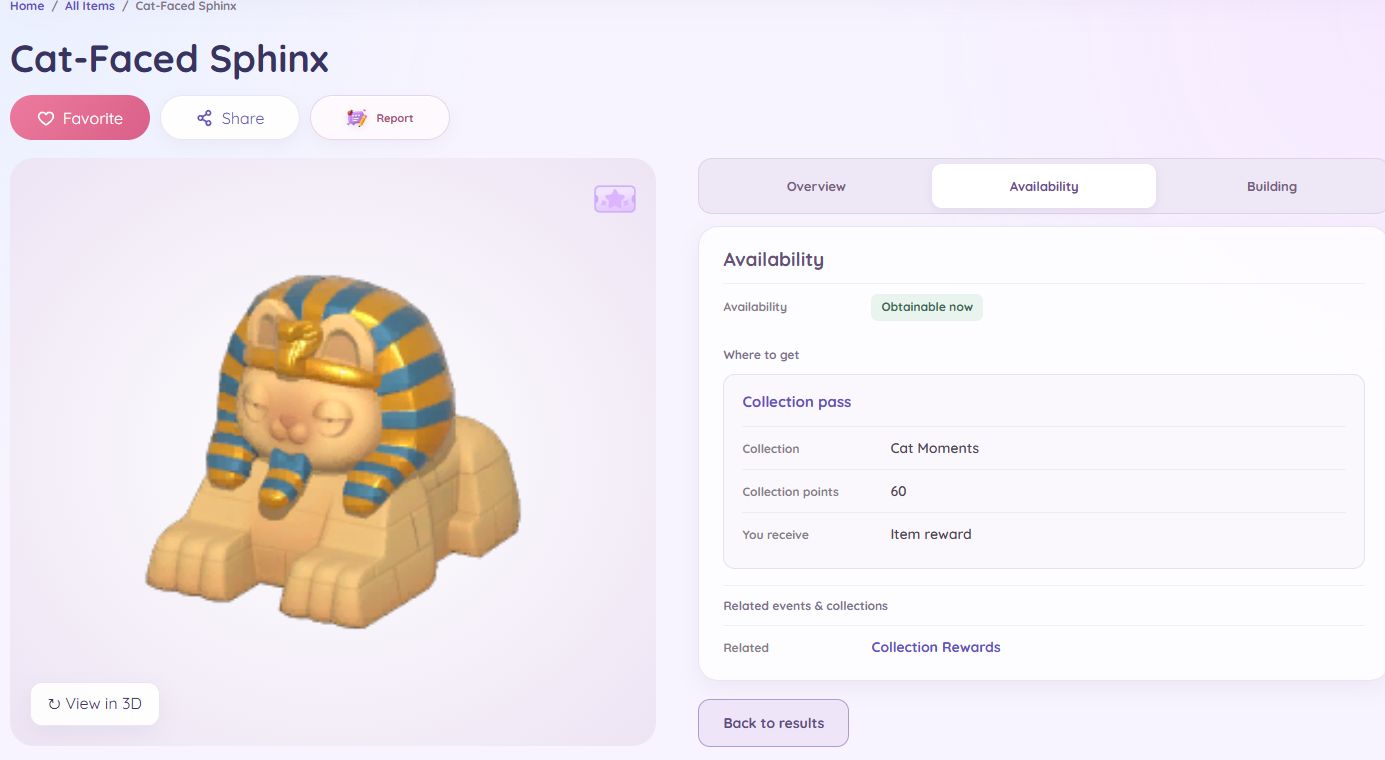
Open Availability on an item page to see where to get it. Shops, quests, festival passes, and other rewards now have their own sections, with the requirements beside the source they belong to. Depending on the item, you can find a price, pass level, quest, sign-in milestone, or account-age requirement. Related events and collections appear separately for more browsing.
Obtainable now means there is a way to get the item, even if you still need to reach a level, finish a quest, or unlock a recipe. A recipe reward unlocks crafting; you still need to make the item. An item with only an ended event source stays unavailable, and its past source remains listed. When I cannot confirm a current source, the page says so.
Availability is a work in progress across the item database. This first version is ready to use, but some sources and requirements may be incomplete or incorrect. If something does not match what you see in the game, use the Report button at the top of that item's page and tell me what you found. I'm continuing to add detail so future updates can explain more of the steps needed to get each item.
Shop links show the items a store can sell, including its rotating selections. Prices, purchase limits, and refresh schedules appear where known, but your current shelves may differ. Appearance unlocks only need to be bought once.
Annie's Friendship Store has its own item list, separate from Annie's Music Store. You can also browse Vanya's fishing supplies, Naniwa's insect-catching supplies, Ka Ching's general store, and the other shops below.
Explore dedicated item pages
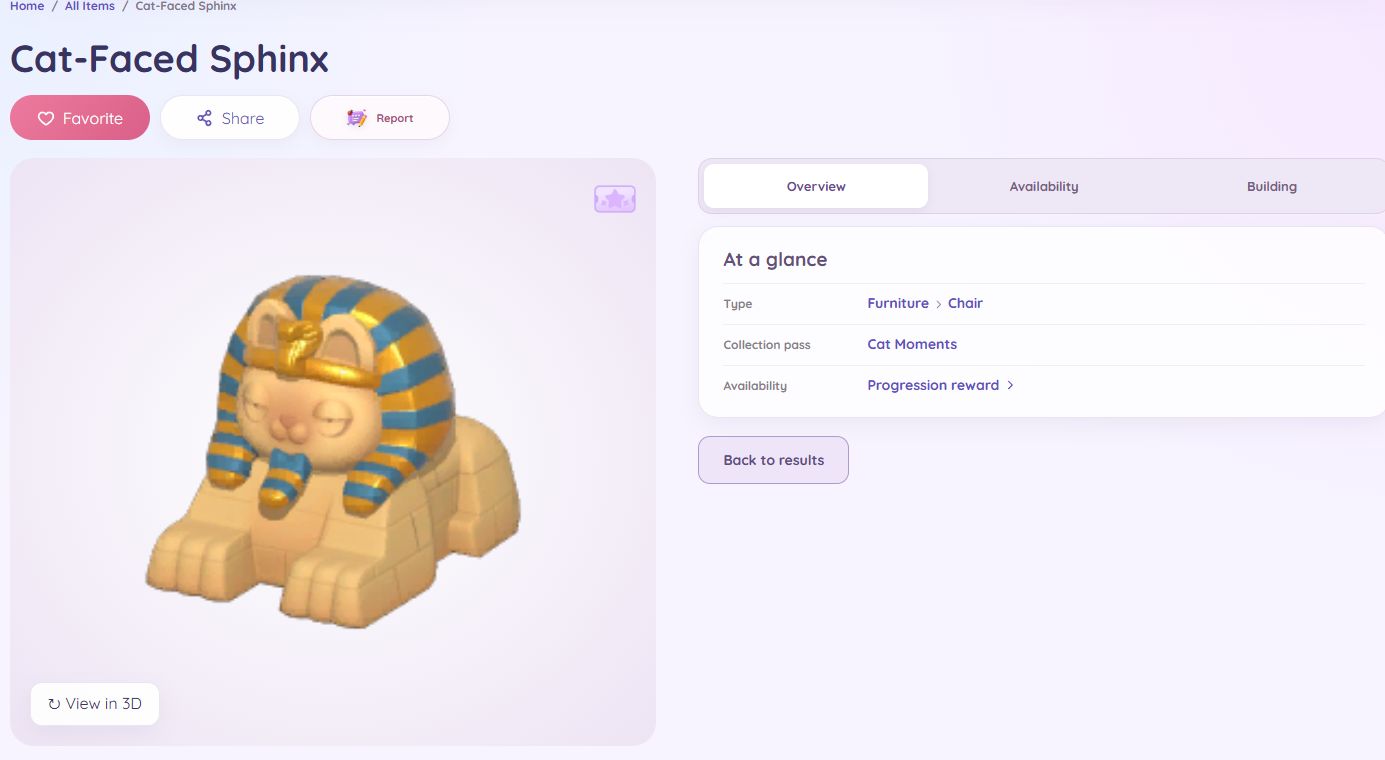
Select an item in the database to open its own page. These dedicated pages replace the pop-up previews on the main item list, with room for more in-depth information. Each page has a direct link you can bookmark or share with a friend.
Start with At a glance for the key facts, then open Availability to explore sources and requirements. Recipes, building details, and delivery options have their own tabs when they apply to the item. Where a 3D preview is available, you can rotate and zoom in to inspect it.
Build your next look in the wardrobe
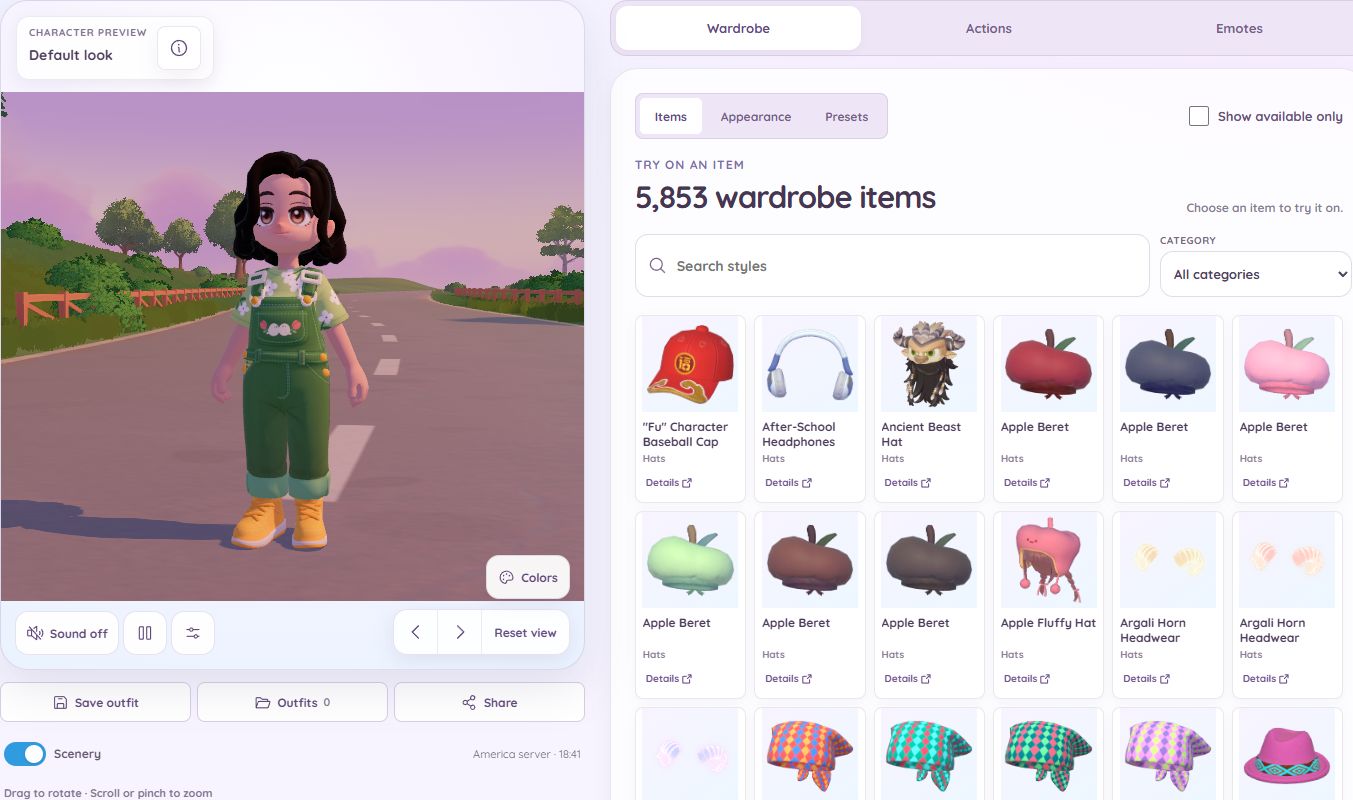
Mix clothing, hairstyles, accessories, and held items on a 3D character before deciding what to collect. Rotate the character to see the details, or zoom in for a closer look. The Scenery switch lets you keep the outdoor setting or turn it off.
Choose Items to browse individual pieces. Use the category menu and search to narrow the list, then select a thumbnail to try it on. Details opens the item's page in a new tab, so you can check it without losing your place in the wardrobe.
If a preview feels slow or choppy, open the information button beside the character preview's title for browser tips.
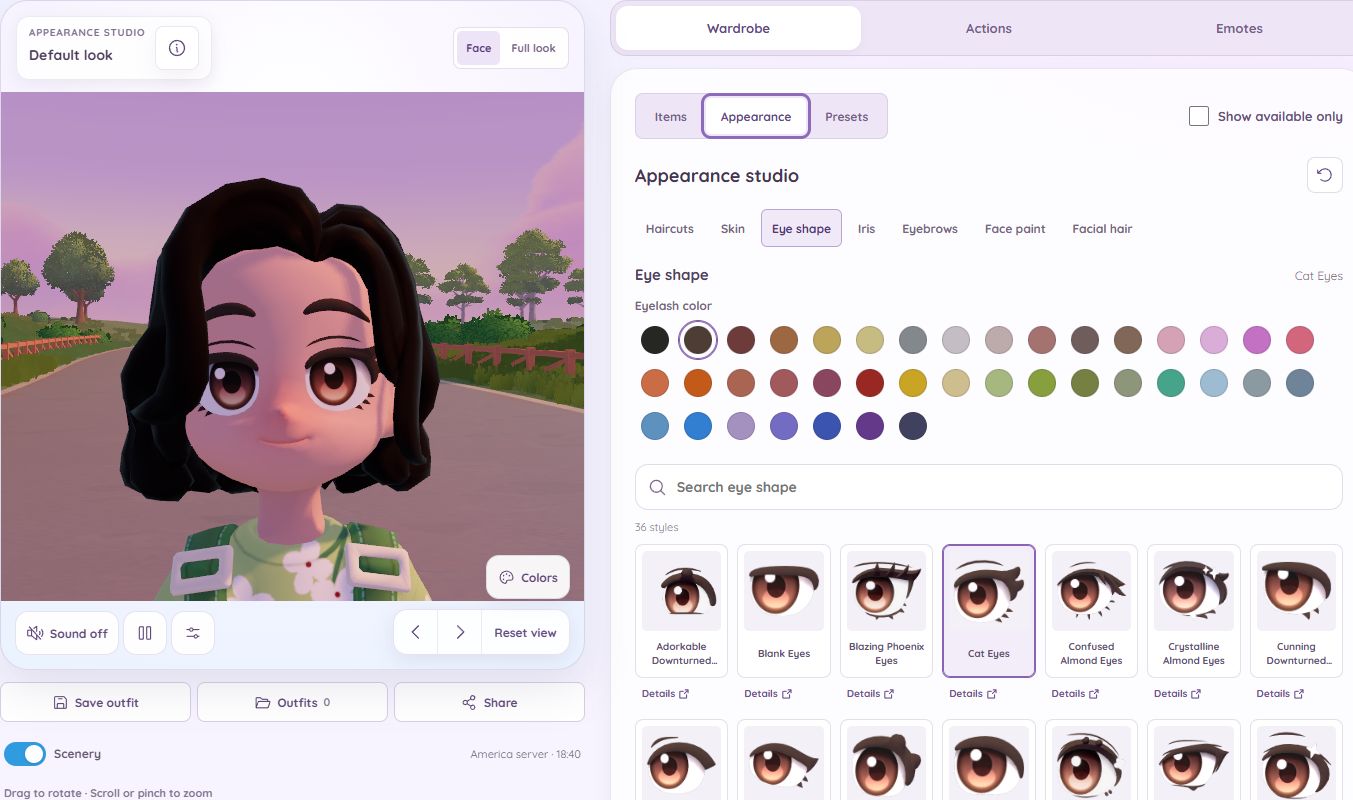
Get closer in the appearance studio
Select Appearance in the wardrobe to explore haircuts, skin colors, eye shapes, irises, eyebrows, face paint, and facial hair. The Face view brings the camera closer, making small differences easier to see. Full look returns to a wider view.
Pick a style, then use the available color swatches to adjust it. Iris styles and eye colors are separate choices, so you can try different combinations. Details opens the item page for an unlockable style.
Try a complete outfit
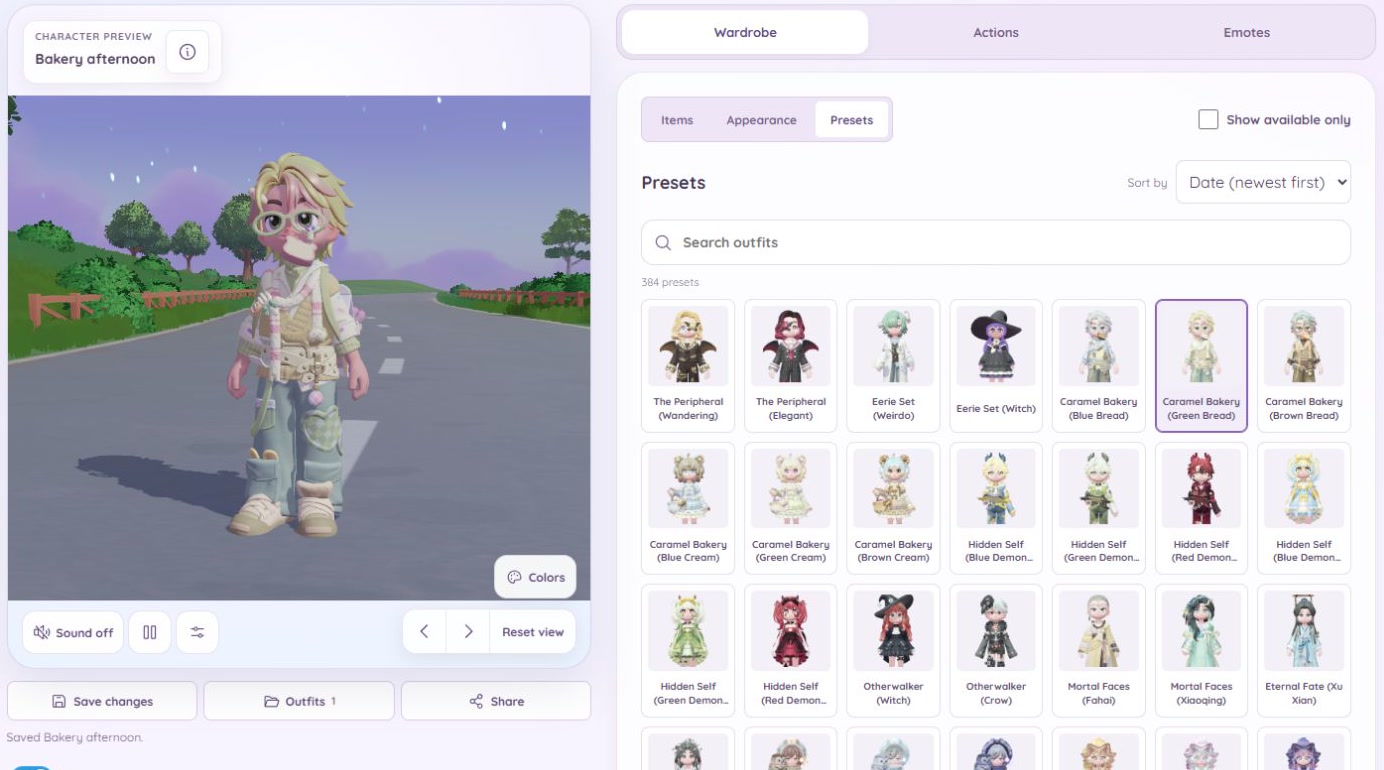
Open Presets to browse the game's outfit sets with their original thumbnails. Choose a preset to put its matching pieces on the character together, then mix in your own choices.
Date (newest first) brings recently released and expected upcoming sets toward the top. Sets without a known date remain in the list. Use Show available only to focus on outfits marked as obtainable; leave it off to explore past and upcoming looks too. You may still need to meet the pieces' level, quest, or event requirements.
On a wearable's item page, Preview Entire Set in Viewer loads its matching outfit into that page's viewer when a set preview is available. You do not have to leave the item page to see the pieces together.
Save a look, or share it with a friend
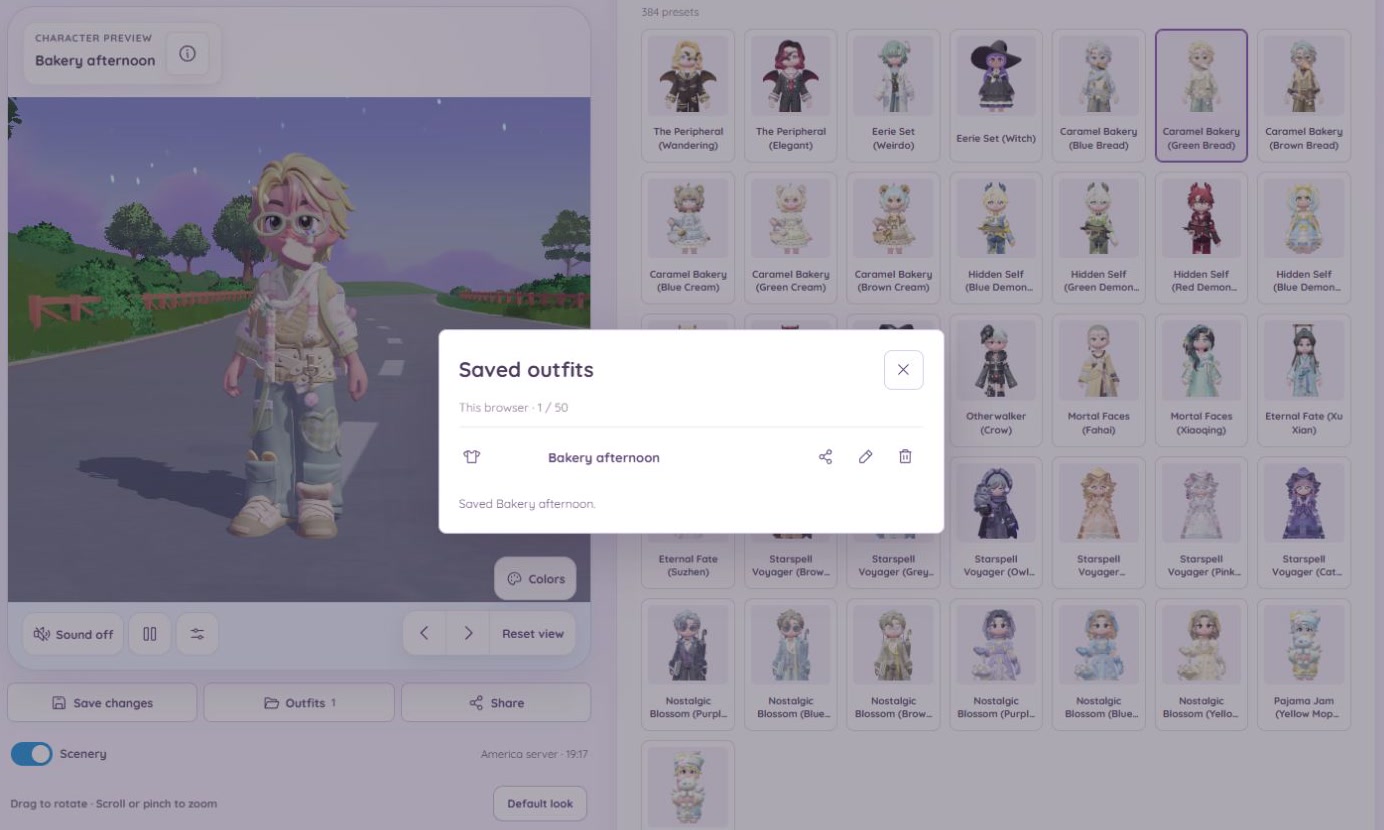
Choose Save outfit and give your look a name. Open Outfits to return to a saved look later. After loading one and changing it, Save changes updates that outfit; Save as new keeps a separate version.
Share creates a link to the look currently on your character, whether you have saved it or not. Someone opening that link can load the outfit in the wardrobe without needing your saved-outfit list.
Saved outfits stay in this browser, not in a Build Heartopia account or your game account. They do not automatically sync between devices, and clearing this site's browser data can remove them. Keep a share link for looks you want to open elsewhere. Trying on or sharing an outfit does not unlock its items in the game.
See actions and emotes in motion
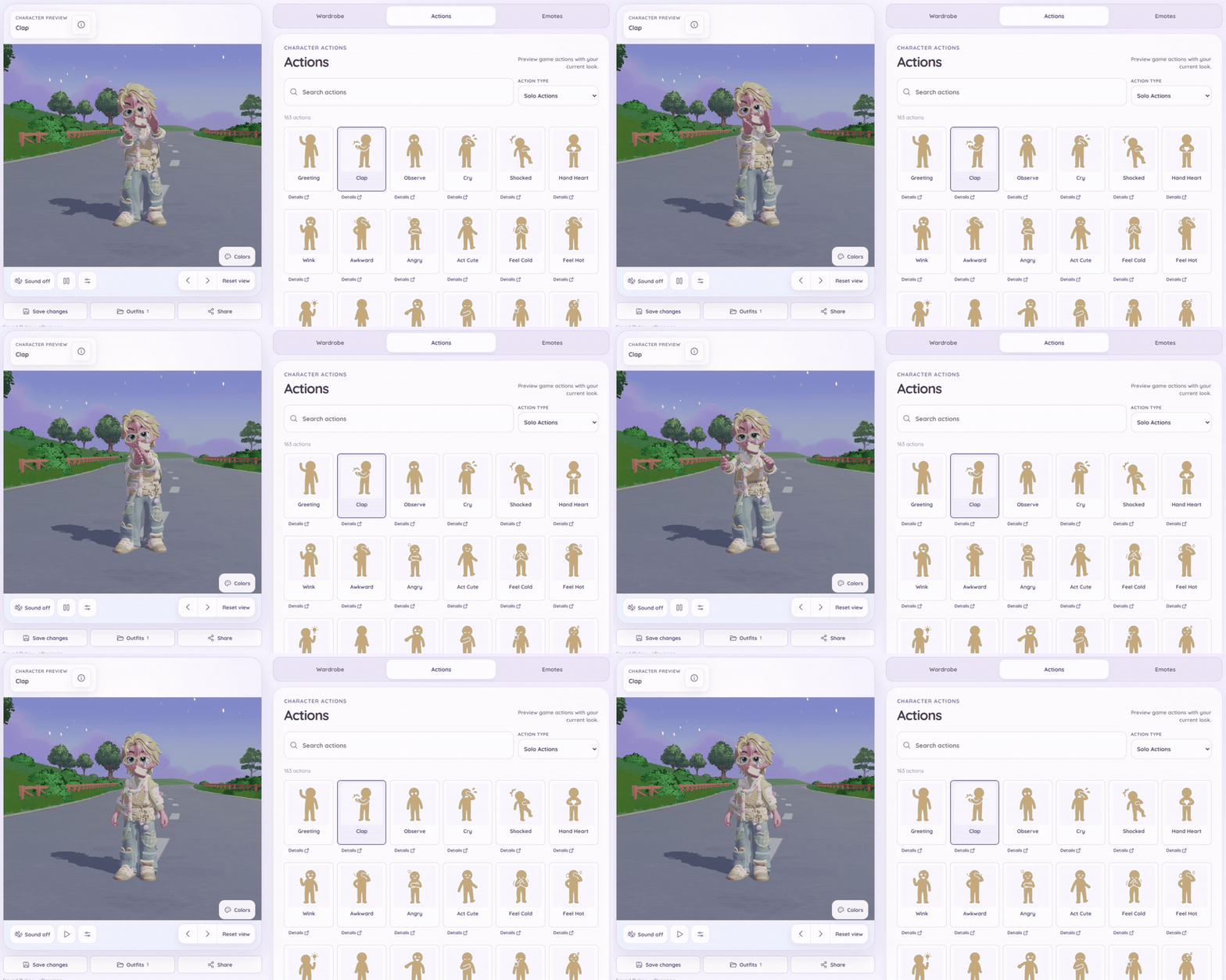
Switch to Actions for character animations, or choose Group actions there to bring in a second character. Both characters start idle, play the selected interaction together, and return to idle when it finishes. Switching back to the wardrobe or emotes returns to one character.
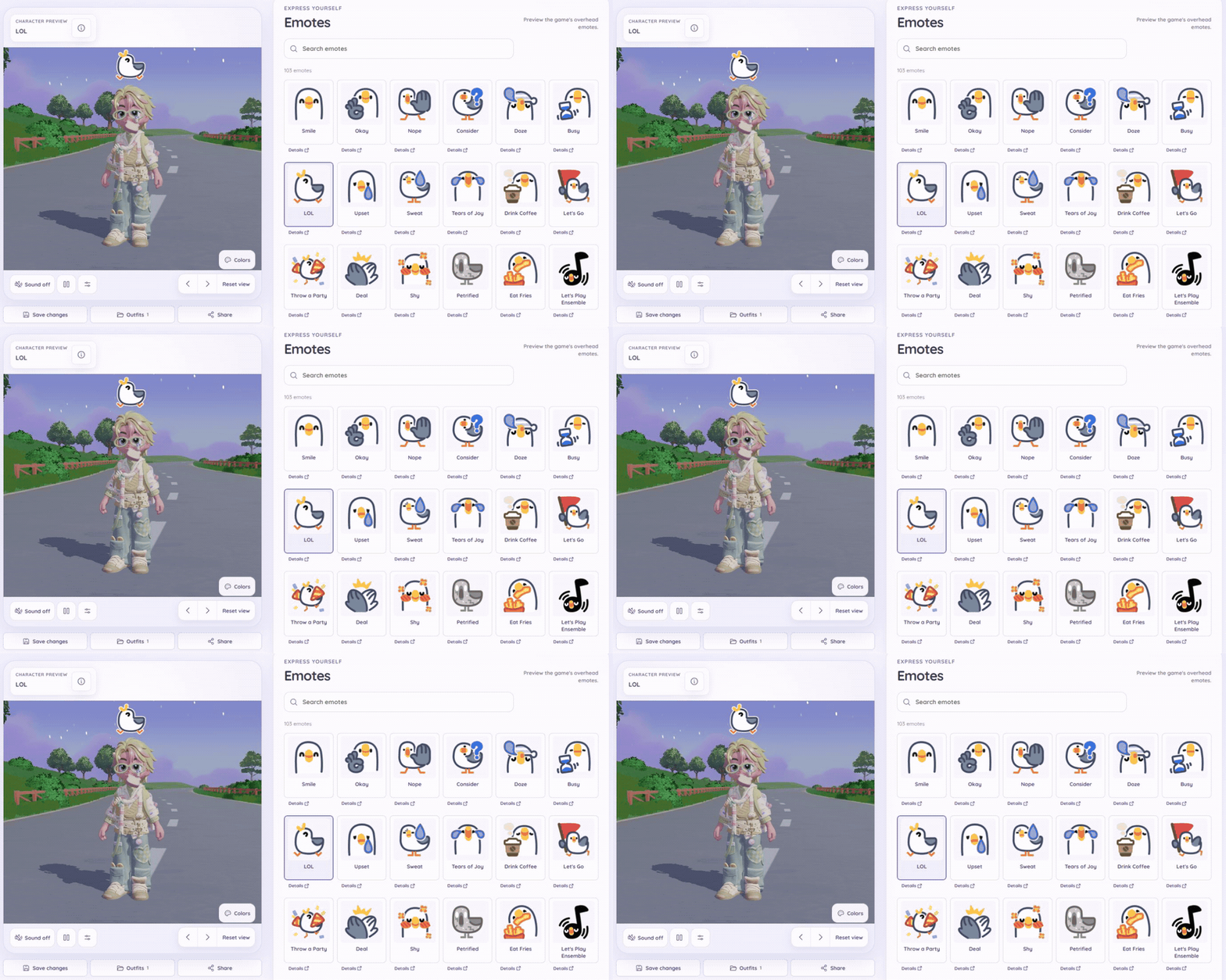
Emotes previews the game's overhead stickers while the character keeps its idle animation. Each sticker plays briefly, then disappears. Some action previews also include props, effects, and sounds; use the sound control to listen.
Actions and emotes have their own pages with availability information and a 3D preview. You can also share a link to a selected action or emote in the wardrobe, so a friend can open it directly.
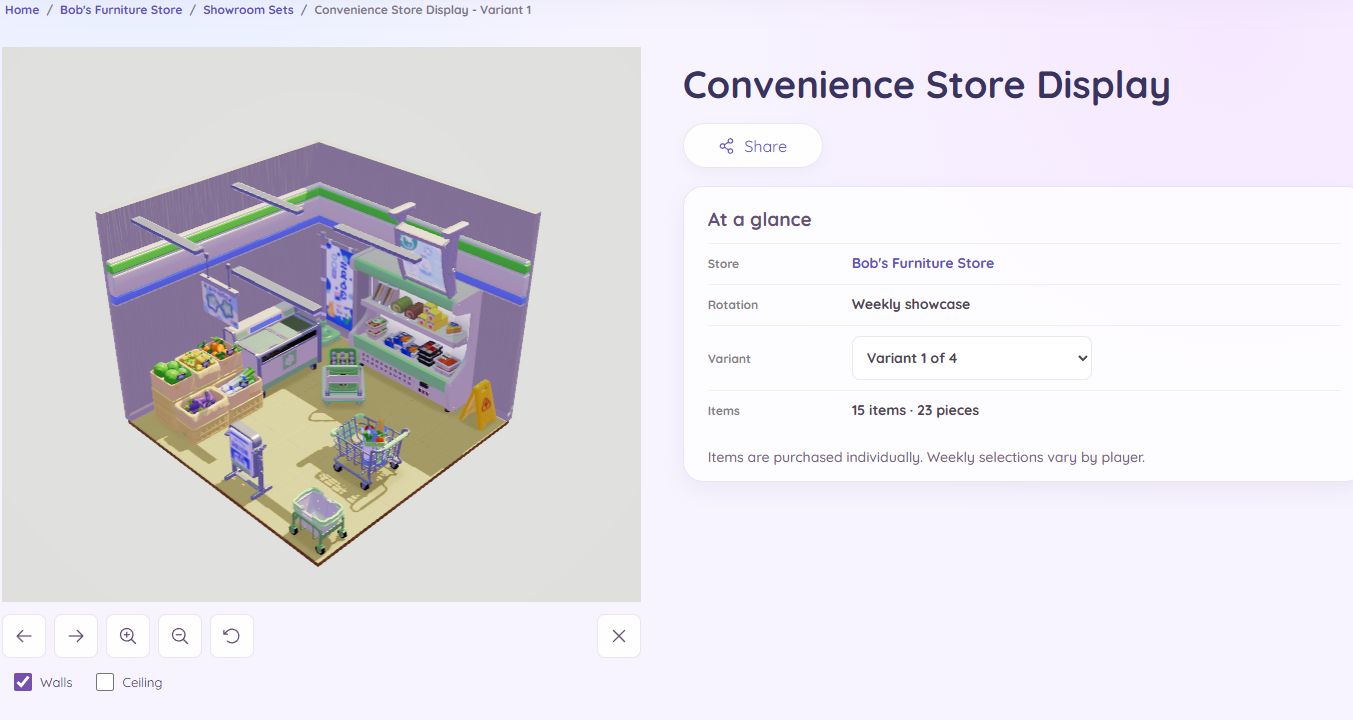
Explore Bob's showroom sets
Wondering what goes with a piece in Bob's weekly showcase? Furniture item pages now link to the showroom arrangements that include it. Each showroom lists the individual items and quantities, with links to their item pages.
Where a 3D preview is available, open it to rotate and inspect the furniture arrangement. Change the variant to compare its matching colors. Display-only building pieces are listed separately, and the preview explains when customized building pieces are not shown.
Showroom names describe the arrangements rather than official collection names. The furniture is bought as individual items, and weekly selections vary by player.