Optional accounts and your saves
Build Heartopia now has optional accounts. You do not need an account to browse the site, save favorites and wardrobe outfits, or track your collection checklists.
Guest saves stay in the browser you used. Clearing the site's browser data can remove them.
An account lets you keep favorites, saved wardrobe outfits, and collection checklist progress across devices. Open Account to sign in or create an account.
Already have guest saves? After signing in, open Saves in Account and choose which types to import from your browser. Your existing account saves stay, and the originals stay in your browser.
With an account, you can also create build pages and give a heart to community builds. You can browse the gallery without signing in.
Manage your profile and sign-in
In Profile under Account, you can change your website username. Your published build bylines follow it. You can also save your Heartopia UID there if you want. Only you can see it on this site.
Under Sign-in & security, you can manage signed-in devices and set up two-factor authentication with an authenticator app. You need to set a password first. The setup also gives you backup codes to keep in case you lose access to your app.
Share your Heartopia builds
Your builds have a place on Build Heartopia! Browse community builds for ideas, or sign in and open My Builds to create a page for your own work. You can save a draft privately and return to it across devices.
A finished showcase needs a title, at least one screenshot, and a description. Choose a cover and arrange your screenshots in the order you want. An optional item list lets you choose pieces from the catalog and add quantities and notes. You can add step-by-step instructions and credit the people who inspired you, too.
Have a video tour or tutorial? Add up to eight video links, put them in order, and give them labels. YouTube, TikTok, Facebook, Instagram, Vimeo, and direct video links can play on the build page when embedding is allowed. If a short share link does not embed, try the full video address. Readers can also open the video on its original site.
When you are ready, submit your build for review. Once approved, it appears in the community gallery. Later changes stay in your private draft until you submit them and the new version is approved. Your public byline uses your Build Heartopia username.
If you are exploring someone else's build, catalog items in its list link to their item pages. Longer lists start with 12 entries, and you can search the list or choose Show all.
If you are signed in, you can give a community build one heart to show your appreciation. Your heart is anonymous and permanent. Builds show their heart count once they receive one.
Builds is new, and this is its first version. I’ll keep improving it over time and use your feedback to help shape what comes next. Please let me know what works well and what could be better.
Explore the redesigned catalog and share collections
I’ve redesigned the item catalog so the category, filter, server, and sorting controls are grouped above the results. You can use the reorganized header to search for an item, open Items for Collections, View all items, and Bob's showrooms, or select the heart shortcut for Favorites.
The default catalog and category lists now show 50 cards per page. Use the new numbered pages or Go to page to move through the list. Search, filtered, and sorted results use Show more when more matches are available.
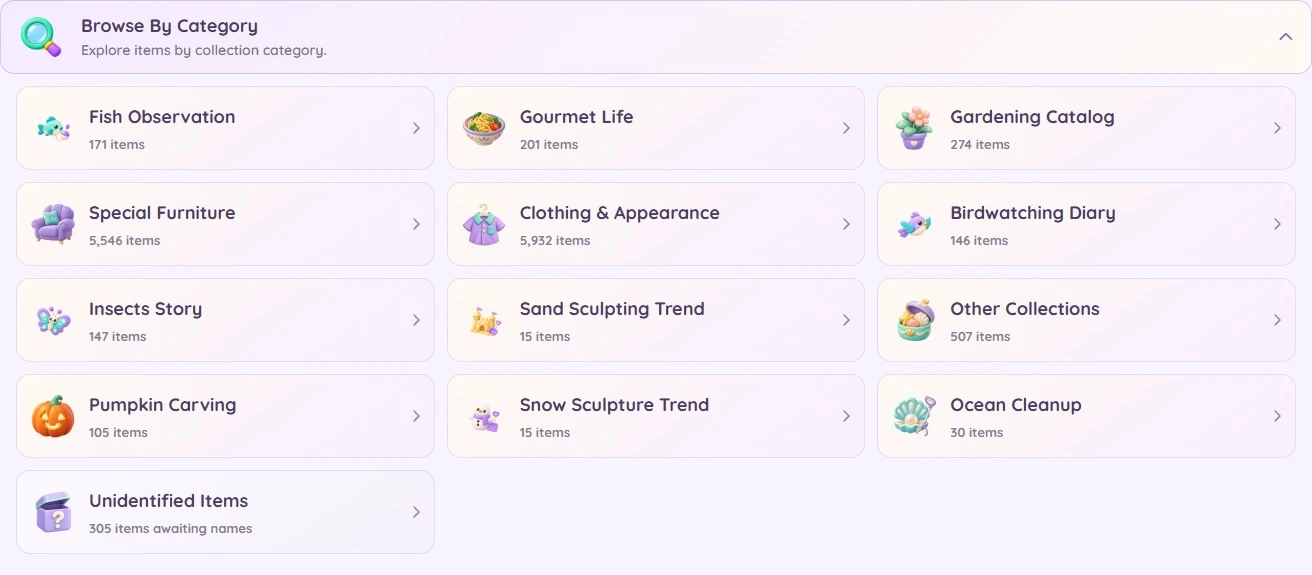
Open Browse By Category on the Collections page to choose from the illustrated category links. Each category has its own link, so you can send a friend straight to it. Use the tabs within a category to explore its subcategories. You can also expand Active Collections and Seasonal Collections to find current collections and the archive. Category pages show 50 items per page and keep your chosen subcategory as you move between pages.
Find item sources and recipe requirements
I’ve brought item sources and requirements into Overview, where you can see availability, dates, and sources or rewards when they are known. Requirements appear with the relevant source, helping you see whether a level, quest, event, or another step matters.
On items with a recipe, Recipe now brings its ingredients and relevant unlock details together. Unlocking a recipe lets you craft the item; you still need its ingredients.
I am still improving item availability details, so some sources or requirements may be incomplete or incorrect. If something does not match what you see in the game, use the Report button on that item's page and tell me what you found.
Compare build load
Build-load numbers on item cards now have clearer labels and a comparison with other placeable items. Select the meter to see the load for the first placement in a load group and each additional placement in that group.
Choose a theme and browse the wardrobe
Open Appearance in Settings to choose Light, Moonlit Lavender, Garden After Dusk, Rosewood Evening, or Lanternlit Evening. Choose System to follow your device setting. Your selection follows you across devices when you sign in; guest selections stay in your browser.
I have also adjusted the wardrobe on mobile so the character preview stays in view while you browse your choices.
Choose a language for game text
Open Settings under Account to choose from 12 languages for available game text. Item names and descriptions, recipes, wardrobe choices, and other game references can appear in your selected language when a translation is available.
Missing or conflicting translations fall back to English. Website navigation and articles remain in English, and your language setting is saved in this browser.
Explore fishing and hobby conditions
The fishing and hobby tools now describe results more clearly when a catch or result requires an activity rather than a location. Choose your server, time, and weather to explore what matches, then search for a name or location.
A time and weather match for an activity does not confirm that the activity is running, so check its schedule in the game. The quest pages also make it clear when instructions are not yet known.
Find more from the homepage and news
I’ve refreshed the homepage to bring community builds, news, tools, and the Now & Next schedule together. The schedule highlights the nearest deadline alongside other current and upcoming events, in your selected server’s time. News & updates shows four recent Global news stories and website updates, ordered by their latest publication or update date.
On the news page, featured stories sit alongside the region filters. When available, Codes & rewards takes you straight to a codes article. Articles can include videos and searchable item and price tables, so you can explore the details that matter to you.
You can also find links to the Build Heartopia Discord and X in the footer. Thank you for helping me improve the site. If you have an idea or find something that needs attention, use the feedback page to let me know.